Start here
A checkout error must help the shopper reach and correct the field. First check whether a message exists, whether it is visible, and whether it explains the next action. Moving the page alone will not fix an unclear message or broken keyboard focus.
- Find the message
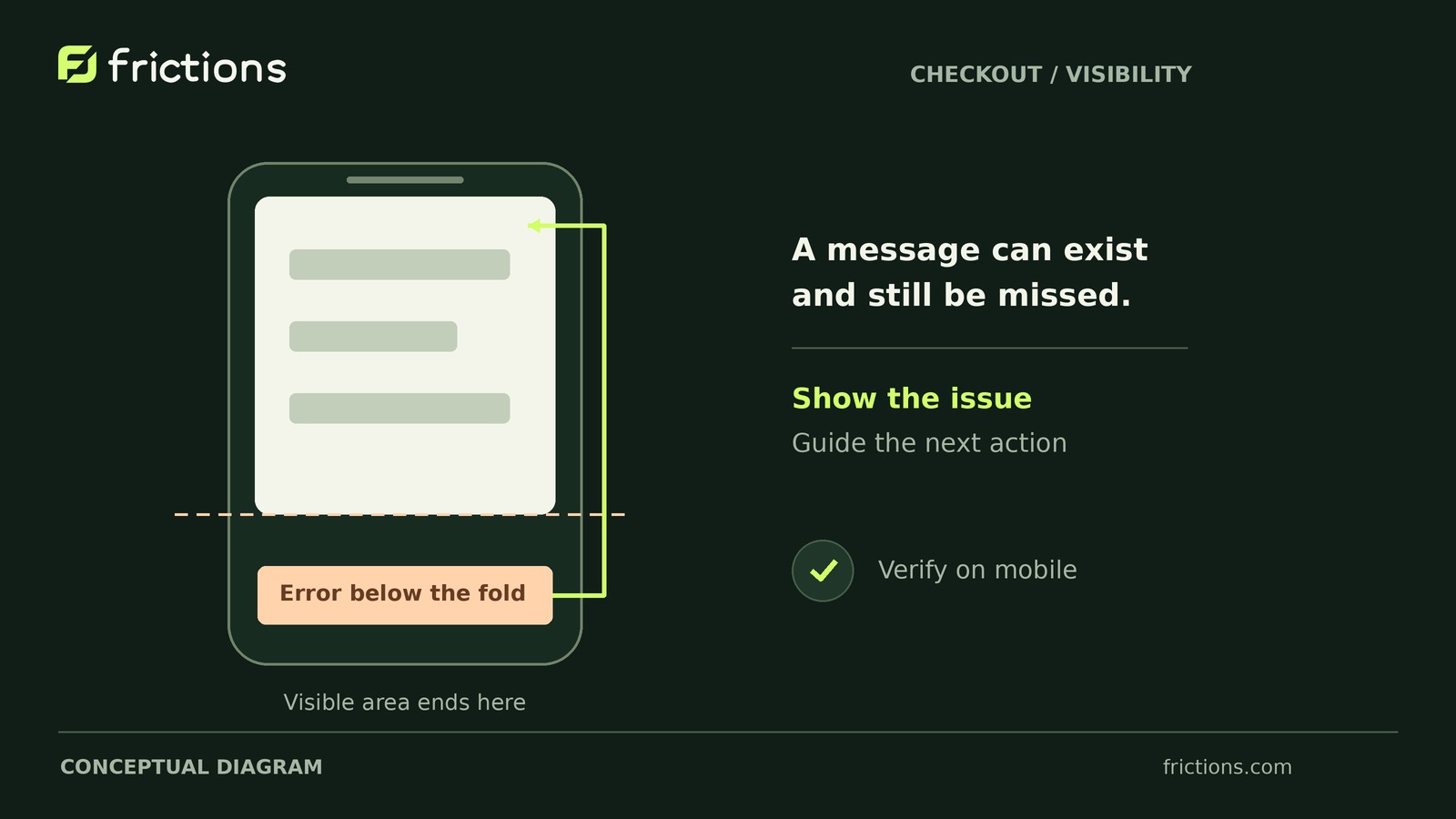
Review the affected checkout on a narrow screen. A notice may be above the current view, behind a sticky element, or missing entirely.
- Follow the correction path
Check whether an error link or focus change takes the shopper to the relevant field. Scroll position and keyboard focus are different: both need a usable result.
- Read the field guidance
The message should explain what to change beside the relevant field. Keep the accepted format and the corrective step clear.
- Give the developer a specific example
Record the screen size, checkout type, observed result and expected correction path. A retained Frictions replay can add event timing; it does not establish the underlying cause.
Reproduce validation failures with fictional details on an isolated test environment before changing checkout behavior. If you also want a Frictions recording there, use the non-production capture opt-in; recording still requires valid consent.
Detailed procedure and working checklist
In this article 5 sections
On staging, leave one required field empty and submit from the bottom of mobile checkout. Before scrolling or tapping elsewhere, record the visible result and which element holds keyboard focus.
Scroll position and keyboard focus are separate. A visible notice does not necessarily provide a usable route to the invalid field. Choose the repair from the finding:
- No feedback exists: Investigate missing validation feedback.
- Feedback exists outside the view: Investigate placement, obstructions and viewport response.
- The recovery route fails: Investigate error navigation and focus behavior.
- The field remains unclear: Repair its message and association with the input.
Several failures can coexist. Fix the broken recovery steps, not just the page’s scrolling.
1. Establish one repeatable missing-field test
Use synthetic customer details on staging. If correction could let checkout proceed to payment, verify sandbox settings and test credentials first. Disable live payments and real fulfillment; do not use real customer or payment data.
Choose a field required for the selected country and checkout configuration. Postal code is suitable only when required in that scenario. Complete other required inputs to avoid unrelated errors.
Record:
- Classic shortcode, Checkout Blocks or customized checkout.
- WooCommerce, theme and checkout-extension versions.
- Device model, operating system, browser, viewport, orientation and zoom.
- Test country, shipping option and omitted field.
Submit once from the bottom of checkout. Note whether the software keyboard was open, and capture the resulting viewport before searching for feedback.
If the rejection does not reproduce, record that result. Check whether autofill, country selection or another configuration change altered the test.
2. Inspect the recovery path, not just the notice
Find the feedback
After recording the initial viewport, inspect the rest of the page. Look above the viewport, beside the field and behind sticky headers, footers or the software keyboard.
If no message exists, report missing feedback rather than an off-screen notice. Distinguish browser-provided validation feedback from checkout-rendered messages so the developer investigates the correct layer. Do not assume scrolling to the page top suits every layout.
Follow the route to the field
If the notice includes a link, activate it and observe scrolling and focus separately. Then repeat using a keyboard: can you reach and activate the link, and what receives focus afterward?
Check whether the route lets someone reach and edit the input predictably. Unchanged focus alone does not prove a defect; compare the result with the intended route. Ask a developer to inspect the focused element if necessary.
Without an error link, assess whether another clear, keyboard-operable route exists. Adding a link is not the only possible repair.
Inspect the field’s explanation
Check whether the message identifies the correction. For an empty required field, “Enter a postal code” is clearer than an unexplained “Invalid value.”
Have a developer inspect the message’s programmatic association—the markup relationship connecting it to the input—and whether the input’s invalid state is exposed to assistive technology. Nearby text and a red border do not establish that association.
Try correcting the synthetic value and record what happens.
3. Isolate the responsible layer before changing it
Save the staging configuration and preserve a rollback path. Disable one suspected checkout customization at a time, or compare with a known-good theme on staging.
Keep the checkout type, omitted field and reproduction steps unchanged. Reconfirm that the same required-field rule remains active, and restore the baseline before each new isolation trial.
A changed result narrows the investigation; it does not identify the exact faulty template or script.
Repair the responsible template, script or validation configuration rather than stacking competing scroll handlers. Agree on focus behavior appropriate to that checkout’s layout and updates. There is no universal focus script.
Do not remove the required-field rule merely to make the error disappear.
4. Turn the findings into a bounded developer ticket
Keep observations, intended behavior and unknowns separate. This hypothetical initial report illustrates the structure; it does not describe default WooCommerce behavior.
- Environment: Staging classic checkout on a mobile browser, portrait viewport of 390 by 844 CSS pixels, 100% zoom. Attach the exact device model, operating-system and browser versions, plus WooCommerce, theme and checkout-extension versions.
- Configuration: United States selected, with a staging shipping option named “Test flat rate.” Postal code is explicitly required in this hypothetical configuration. Other required inputs contain valid synthetic test details.
- Steps: Leave postal code empty, scroll to Place order, close the software keyboard and submit once.
- Observed visibility: A notice appears above the viewport. Focus remains on Place order. After manually scrolling up and activating the notice link, the postal-code input becomes visible but focus remains on the link.
- Observed field recovery: Nearby text says “Postal code is required.” Entering a synthetic value accepted by the configured validator clears this rejection on resubmission, without losing other completed inputs.
- Untested: Keyboard-only recovery, programmatic message association and exposed invalid state.
- Expected repair: The rejection presents a visible notice. For this ticket, the agreed keyboard recovery route is to reach the notice link with Tab, activate it with Enter and place focus in the postal-code input for correction. The field message must explain the correction and be programmatically associated with the input.
The off-screen notice is observed; responsibility for it remains unknown. The focus result warrants investigation against the agreed route, not an assumption about shopper intent.
Attach only sanitized staging evidence. Exclude identities, payment details, credentials and unrelated private content.
5. Retest against explicit acceptance conditions
Use the original mobile setup, including the software keyboard during correction. Run keyboard-only navigation separately and record its environment. If mobile hardware-keyboard use matters to your supported audience, test it rather than treating desktop results as equivalent.
Record pass, fail or untested for each condition in the ticket. Completing a checklist action means the check was performed, not that the repair passed.
This bounded test is not a complete accessibility audit or proof that every checkout configuration works.
Assign a repair owner and a separate retester. Keep the ticket open until the original scenario passes every acceptance condition, with the tested environment and results attached.