Start here
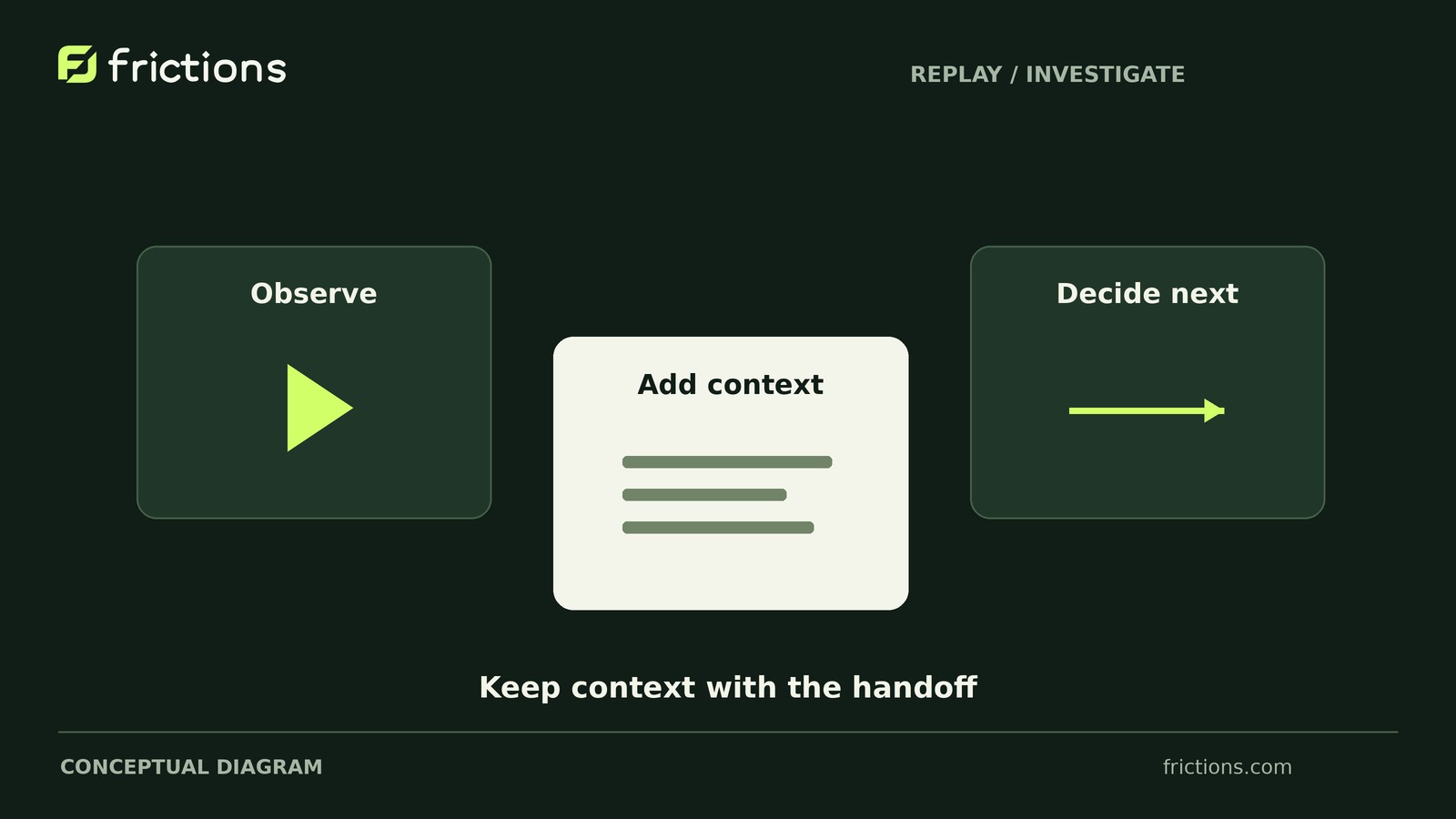
Seeing a custom field in Checkout Blocks is only the first check. Confirm that the final value reaches the saved order and the screen your team uses to fulfil it. Repeat the same checks in classic checkout before deciding to switch.
- Define where the answer belongs
Write down whether the field is required, what blank means, where its value is saved and where staff should see it.
- Try four ordinary cases
Use fictional values: leave the field blank, enter a value, edit it after checkout recalculates, and clear a previously entered value.
- Inspect the saved result
For each case, compare the final input with the order data and the fulfilment view. A field that looks correct at checkout can still fail later.
- Hold the switch if a check fails
Keep the current checkout until the field meets its requirements or the unresolved behavior is understood. Record which plugin, theme or integration owns the field before assigning the fix.
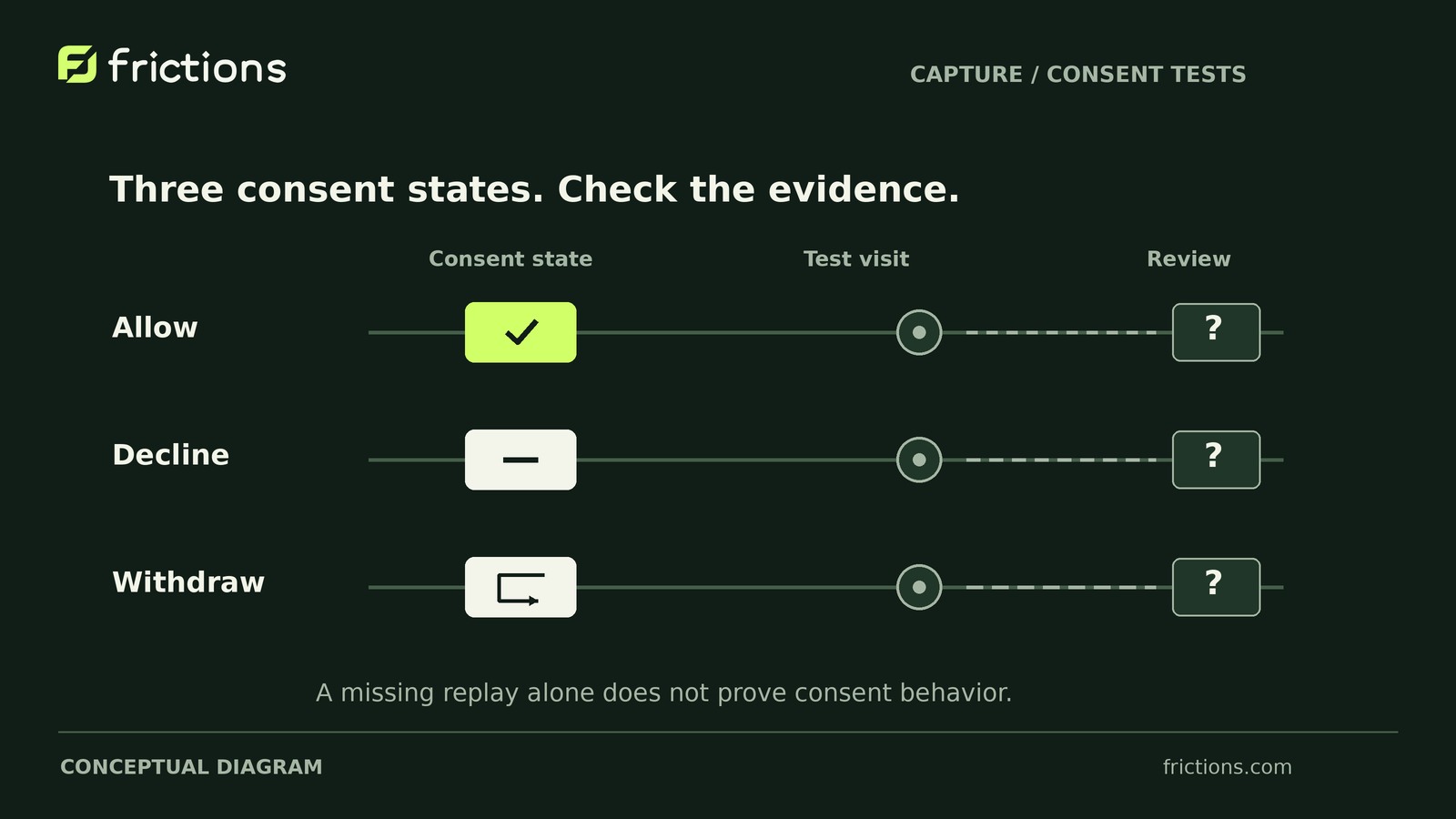
Run order-placement checks on an isolated test store with sandbox payments, isolated email and real fulfilment disabled. Frictions can provide retained checkout context, but it does not prove that a field was saved. If you use recording during these checks, follow the non-production capture opt-in and consent requirements.
Detailed procedure and working checklist
In this article 4 sections
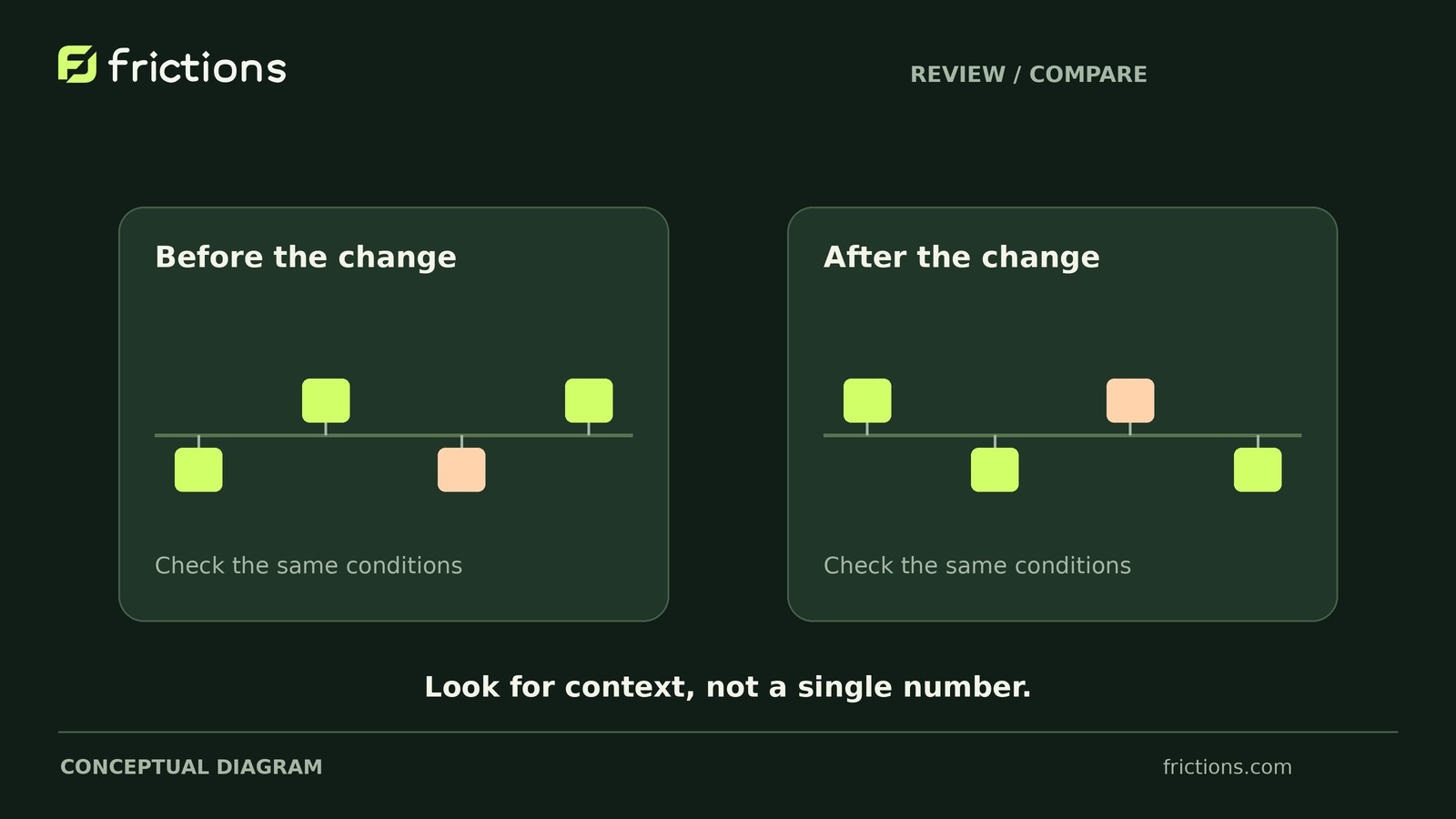
Before switching to Checkout Blocks, trace your custom field from its final checkout input to saved order data and the view fulfillment staff use. Test four cases in both implementations: blank, entered, edited after recalculation, and cleared.
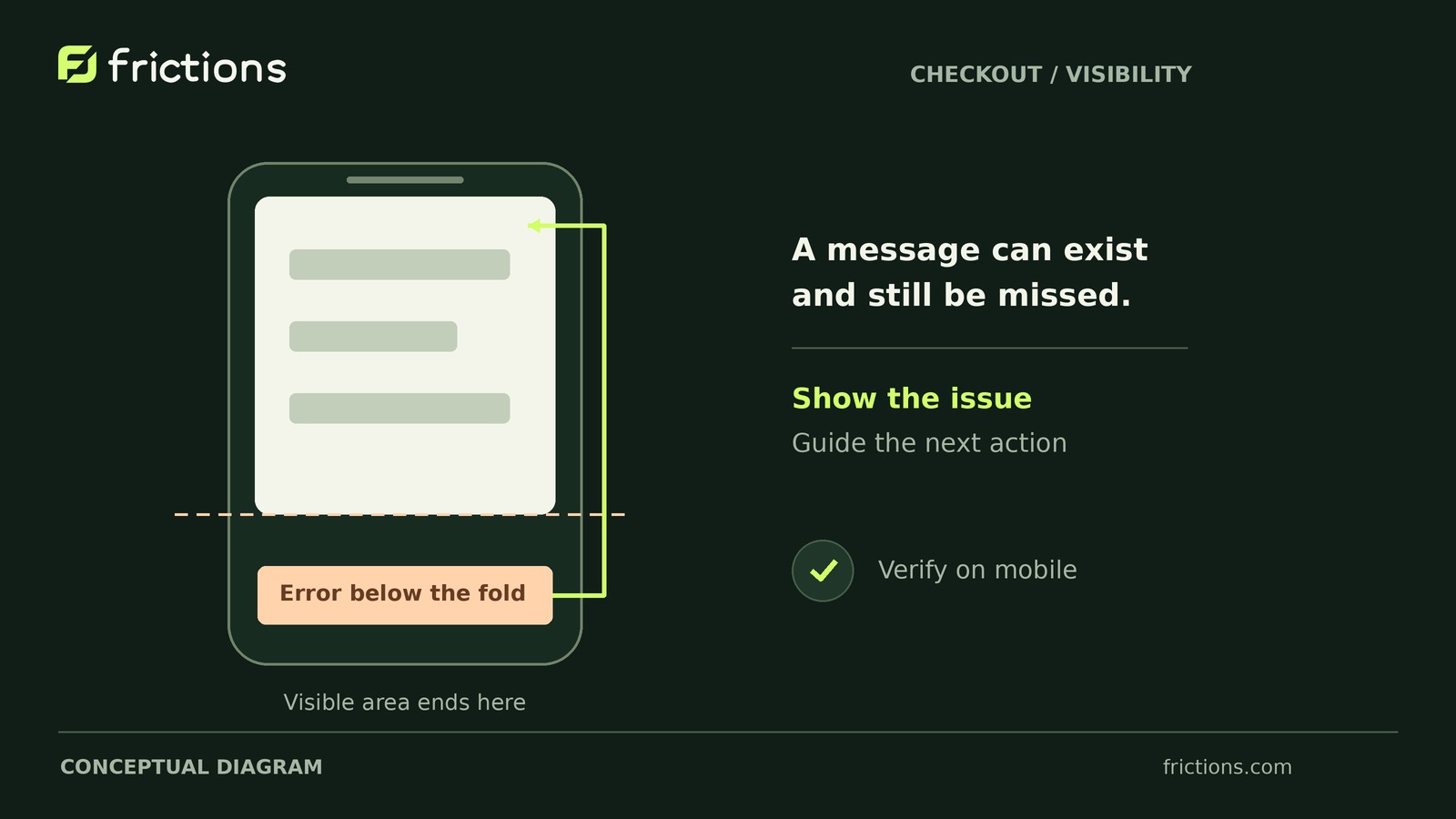
A visible field is not proof that its final value reaches the order. Hold the switch for this field if storage or staff visibility fails expectations—or remains unverified.
Prepare the comparison in four steps
1. Establish the field contract
Identify the extension or customization that owns the field. Consult its documentation or developer to confirm:
- Support and required configuration for each checkout implementation.
- The documented storage destination for each implementation.
- Whether blank and cleared submissions should create no entry, an empty value, or another result.
- Where fulfillment staff should see submitted values, with their normal permissions.
Do not assume classic checkout and Blocks use identical metadata keys or display integrations. Without a confirmed storage destination or blank/cleared-value expectation, the relevant case cannot pass.
2. Verify staging isolation
Use isolated staging with synthetic customer details, sandbox payments and gateway-provided test inputs. Suppress customer email and disable live payments, real fulfillment and outbound production integrations. Verify these protections before creating orders, and preserve a restorable baseline.
3. Record the configuration header
Record shared details once above your results: field owner, WooCommerce and theme versions, relevant extension versions, field settings, order-storage configuration, browser, cart, initial shipping choice, staff view and permissions. Include the documented storage, display and empty-value expectations.
Give each configuration a reference, such as C1 for classic and B1 for Blocks. Change only the checkout implementation between comparisons. If Blocks requires additional integration changes, record those under its candidate configuration; do not describe checkout type as the only difference.
4. Reset state and confirm the recalculation action
Start each case with reset browser/session state and create a fresh synthetic order. Prevent autofill or saved test-account values from supplying the field unnoticed.
Choose a repeatable recalculation action available in both configurations, such as changing between two staging shipping options. Record the action and confirm the expected checkout update occurs rather than assuming a click triggered it.
Build the four-case paired field record
Use the paired record below as a model, replacing every outcome and reference with your own observations.
This is an entirely hypothetical delivery-instructions example, not test evidence or WooCommerce default behavior. C1 and B1 are fictional configuration references with otherwise equivalent conditions; all order references are fictional too.
Assume this optional field’s documented contract requires no saved entry for blank or cleared input. Entered markers must be saved and shown unchanged to fulfillment staff.
For each run, note the final input immediately before submission. Have an authorized developer inspect the documented saved-field location using an appropriate read-only method. Separately reopen the order in the fulfillment view with the intended staff permissions. Do not edit the order to make the result appear.
Case 1: Leave the optional field blank
Confirm the field starts empty, leave it untouched and submit.
- Classic: Configuration C1; order C-01; final input blank; saved result absent; staff-visible result no instruction; status pass.
- Blocks: Configuration B1; order B-01; final input blank; saved result absent; staff-visible result no instruction; status pass.
Case 2: Enter a value
Enter the synthetic marker TEST-A and submit. Inspect storage and display separately.
- Classic: Configuration C1; order C-02; final input TEST-A; saved result TEST-A; staff-visible result TEST-A; status pass.
- Blocks: Configuration B1; order B-02; final input TEST-A; saved result TEST-A; staff-visible result no instruction; status fail—visibility.
Case 3: Edit after checkout recalculation
Enter TEST-A, perform the recorded recalculation action and wait for the update to settle. Replace the field contents with TEST-B, confirm the final input and submit.
- Classic: Configuration C1; order C-03; final input TEST-B; saved result TEST-B; staff-visible result TEST-B; status pass.
- Blocks: Configuration B1; order B-03; final input TEST-B; saved result TEST-A; staff-visible result TEST-A; status fail—stale saved value.
Case 4: Clear a previously entered value
In a fresh checkout, enter TEST-A, perform the same recalculation action, then remove the text completely and submit. This tests clearing during checkout, not editing an existing order.
- Classic: Configuration C1; order C-04; final input blank; saved result absent; staff-visible result no instruction; status pass.
- Blocks: Configuration B1; order B-04; final input blank; saved result not inspected; staff-visible result no instruction; status unverified—storage.
Route discrepancies without guessing the cause
Use these branches as investigation routes, not diagnoses:
- If storage matches expectations but staff cannot see the value, investigate the documented display path and staff access.
- If the saved result does not match the final input under the field contract, investigate the input-to-storage path. Changing only the order display would not resolve that discrepancy.
- If storage has not been inspected, mark the case unverified. An empty order screen does not establish that an earlier value was removed.
Judge classic checkout against the same documented expectations. It is a comparison baseline, not automatic proof of correct behavior.
Decide, assign and retest
The hypothetical verdict is hold B1: case 2 fails staff visibility, case 3 retains a stale value, and case 4 lacks storage evidence.
Assign all three items to the developer responsible for the field integration. Request a supported repair for the two confirmed discrepancies and a storage inspection for B-04. Supply the shared configuration header, paired results, synthetic order references and exact input/recalculation steps. Exclude unrelated customer data and credentials.
After a repair, label the revised Blocks configuration B2 and repeat its four cases with fresh synthetic orders. Do not prescribe an undocumented hook from these symptoms alone.
The updated comparison contains four fresh B2 results and four recorded C1 baseline results, provided C1’s recorded conditions remain unchanged. If shared settings, extension versions or other baseline conditions change, rerun classic’s four cases under a new configuration reference too.
Proceed for this field only when all eight results in the current comparison meet their documented expectations and no required check remains unverified. Passing covers only this field and the tested configurations—not other fields, devices, payment methods or the entire checkout.
Your next action is to confirm the field’s storage destination and blank/cleared-value rules with its integration developer, then put those answers in the shared header before running the first blank-field pair.