Cookiebot
Select Cookiebot in Frictions setup. Capture requires a completed, explicit choice with statistics consent allowed.

Free 1.1.3 · Pro 1.1.2 · Start with Free
Follow the four steps below. Capture starts disabled; you choose when to enable it.
01 · Check your store
/checkout/.Capture covers the configured checkout only. It excludes order-pay, confirmation, account and off-site payment pages. Other checkout builders, plain ?page_id= checkout URLs and network activation are unsupported.
Test your theme, gateways, consent banner and cache/security configuration before recording shopper visits. Read the dated release-test evidence.
02 · Install and configure
Back up your store. Download Free 1.1.3, then use Plugins → Add New Plugin → Upload Plugin in WordPress to install and activate it. If you use Pro, install and activate the separate Pro 1.1.2 package next.
Normal individual activation opens Frictions in full-focus mode. Use Back to WordPress to leave, or Exit full screen to restore the surrounding administration. Capture starts disabled. Free needs no Frictions account, installation-sharing permission or marketing signup. A sample replay shows the protected view; it is not a recording from your store.
The defaults are 7 days and 256 MiB. You can choose 1–365 days and 16–10,240 MiB in Settings. Choose values your hosting can support.
Complete and test the integration below. Confirm its setup, review the sample and deliberately choose Enable recording. Enabling recording does not grant shopper consent.
03 · Connect your consent banner
Choose the integration used by your store. Test acceptance, refusal and withdrawal with a separate shopper browser.
Select Cookiebot in Frictions setup. Capture requires a completed, explicit choice with statistics consent allowed.
Select CookieYes (hosted connected). The supported hosted web-app integration must report a completed user action and analytics permission. Standalone WordPress mode is not supported.
Select Other banner — developer setup. Connect the following function to your consent manager’s confirmed analytics choice and change callbacks. Pass true only for an affirmative analytics choice; pass false for refusal, withdrawal or an unknown choice.
function syncFrictionsConsent(analyticsAllowed) {
  const granted = analyticsAllowed === true;
  window.FrictionsConsent = { granted };
  window.dispatchEvent(new CustomEvent('frictions:consent', {
    detail: { granted }
  }));
}
This is an integration function, not a complete consent banner. Your developer must call it with the real choice on page load and whenever that choice changes. Never grant consent by default. Setting the object also makes the choice available if the recorder loads after the callback.
Withdrawal stops capture and requests deletion of that visit’s stored replay. It does not restart on the same loaded page; a later visit can become eligible after a new affirmative choice. The deletion request must reach your store to complete.
Global Privacy Control and Do Not Track prevent capture for every integration. Administrators and non-production environments are excluded by default. Protected replay excludes entered values, payment frames and arbitrary page content; it does not replace your store’s privacy notice or consent assessment.
04 · Check a real visit
No payment or order is needed. The check uses the normal recorder and your normal consent banner.
Choose Verify a real recording in Settings or recording status. Resolve any setup checks shown before continuing.
Open a fresh private browser window, stay logged out of WordPress and add one product to your cart. Return to Frictions and select My shopper cart is ready.
Copy the generated link into that same shopper window. Select Run this check in its checkout panel and make your normal analytics consent choice. The link expires in ten minutes.
Keep checkout open until Frictions shows Recording received, then open the verified recording. “Consent reported” alone does not confirm an upload.
The result confirms stored data from that exact shopper window. It does not certify every checkout combination. End the check when finished; if its link expires or the page reloads, begin a new check.
05 · Review the evidence
Open Recordings and filter by device, outcome, issue, date or duration. Dates use your store’s timezone. Open a replay, inspect its timeline and event list, then mark it watched or bookmark it for later.
Observed issues link to matching recordings. Order shortcuts appear only where an eligible local association exists. “No order observed” does not prove an abandoned sale.
Save useful filters, open guided investigations and add timestamped team notes. Assign an owner, track a manual review status or prepare a developer brief with the observed and expected behavior.
Review notes and exports before sharing. Keep shopper identities, payment information and secrets out of them. See the Pro workflow.
Bookmarks and notes do not extend a recording’s expiry. Evidence comparisons use only retained eligible recordings; deleted, expired and never-captured visits are not represented.
When something needs attention
Enabled means eligible future visits may be captured. Clear list filters, then use the first-recording check. Make sure the shopper is logged out of WordPress, has a nonempty cart, reaches the configured checkout and makes an affirmative analytics choice. Browser privacy signals, missing consent, an unsupported checkout or a full storage budget can prevent capture.
The browser reported a choice, but stored replay data has not been confirmed. Keep checkout open, review Frictions diagnostics and check whether cache or security rules block its same-site WordPress requests. Do not cache checkout or authenticated admin responses. If the check expires, start a fresh check.
Non-production environments are excluded by default. A developer can explicitly enable development recording with define('FRICTIONS_DEVELOPMENT', true); in that environment’s WordPress configuration. Resulting recordings are marked as test traffic. Consent, supported checkout and access protections still apply; use isolated test payments and mail.
This is expected. The player reconstructs approved geometry, safe labels and timing. It excludes product content, arbitrary page text, images, entered values and payment frames. It is a structural replay, not a video or a copy of your theme.
Check filters and retention first. Expired, deleted and withdrawn recordings are unavailable. Order association also requires an unambiguous eligible WooCommerce session; Frictions does not guess between ambiguous tabs, drafts or unsupported visits.
Check that both Free and Pro are active on this individual site and show compatible versions: Free 1.1.3 and Pro 1.1.2. Open Pro licence and complete this site’s first valid activation; existing connections can use Check licence now after upgrading. Some actions require management access. Administrators receive separate frictions_view and frictions_manage capabilities; delegate them deliberately through your usual role-management process.
If Frictions reports unreadable saved settings, review the visible values and consent integration, then explicitly save the form. Capture uses paused defaults while that stored configuration is unreadable. A failed save stays an error; keep your draft and retry after the storage problem is resolved. Do not assume consent or recording was changed from a button click alone.
Recording deletion, consent withdrawal, expiry or staff access may have changed while the report was loading. Reload the investigation to get a fresh, authorized result. A busy or changing store may need another attempt; Frictions does not keep retrying indefinitely.
Keep Free and Pro compatible and check the displayed compatibility or package error. Download the current pair from the official download page and your eligible account. If WordPress deactivated Pro before rejecting the update, reactivate the retained Pro files, then retry with the supported pair. Do not uninstall to repair an update.
In Frictions Settings, choose Download diagnostics. It provides version, checkout, consent and storage checks without replay contents or credentials. Open a support request with the issue, reproduction steps and relevant versions. Never send passwords, payment details or shopper recordings.
For Pro customers
Install compatible Free and Pro packages, in that order. Pro extends the recorder and workspace already supplied by Free.
Open your purchase account, select the purchase and copy its licence key. Never include your key in support screenshots or public messages.
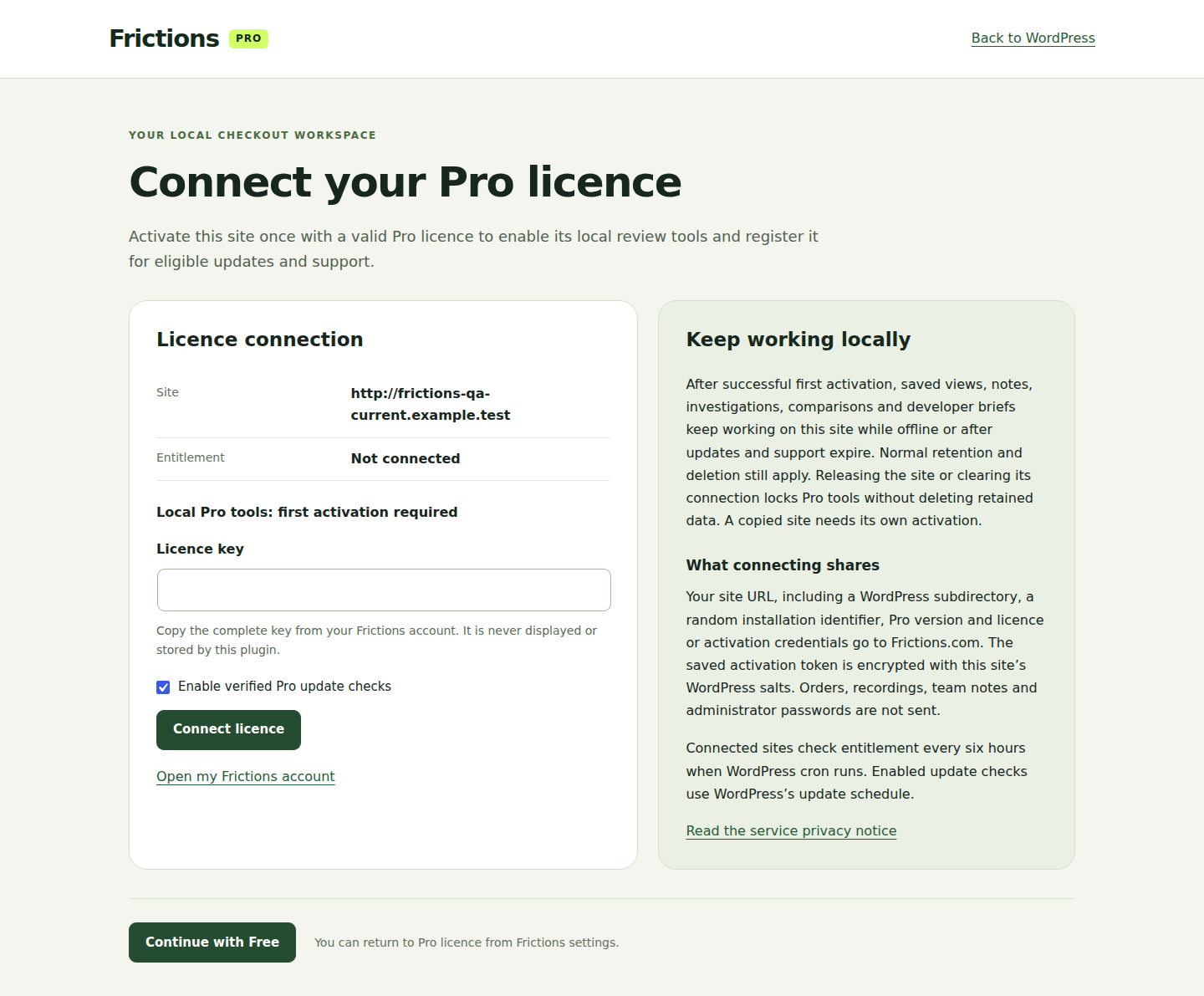
Pro activation opens its licence page. Paste your key and choose Connect licence. A new installation needs one successful activation with a valid licence before Pro tools open. Check the registered site and updates/support status, then continue to Frictions. You can continue with Free while activation is unresolved. The connection does not subscribe you to marketing.
If your site allowance is full, release an unused registration from your account. After successful activation, local Pro tools keep working on that site while offline or after updates and support expire. Ordinary retention and deletion still apply. A copied site needs its own activation. Clearing the local connection locks Pro tools immediately without deleting retained data. A release made in your account takes effect when this site next checks its licence. Existing 0.4.0 connections should use Check licence now once after upgrading to obtain the current signed activation proof.
Pro 1.1.2
Open Investigations → My review queue. Choose Mine, Unassigned or All, narrow by workflow status or new evidence, and sort the retained issue groups. Queue filters do not assign work, mark evidence reviewed or enable email.
Open Saved views → View details to rename, update with current filters or duplicate a view. Review the displayed filters before saving. If another manager changes or deletes the view, your draft stays visible and the old revision cannot overwrite their work. Copy any draft changes before refreshing the saved list.
In Investigations, add a short label and the time of your checkout change. The form shows your browser timezone and the exact UTC timestamp; choose the occurrence if daylight-saving time repeats an hour. Select the saved change, period and device to compare retained evidence before and after it.
Counts exclude expired, deleted, revoked, test and never-captured visits. A recent change has an incomplete after period. Missing evidence or fewer observations does not prove a fix or sales improvement. Labels are manual team context; keep customer details and secrets out. Up to 100 changes remain until deleted or uninstalled and do not extend recording retention.
Inside a replay, open Developer brief, choose the moment and range, and describe the observed and expected behavior. Generate and review the brief, then copy plain text or Markdown, download Markdown or JSON, or choose Print / Save as PDF. If clipboard access is blocked, copy the selected fallback text.
Printing uses your browser; Frictions cannot confirm a saved PDF. Replay links still require authorized WordPress access. Exported copies stay with their recipients and cannot be recalled. Editing your draft hides the previous generated output until you generate it again.
Use the labelled Pro previews and relevant suggestions inside Frictions to see genuine example screens with fictional data, compare what Free includes and what Pro adds, and choose a task to resume after installation and a valid first activation. Viewing a preview does not enable recording, sending or Pro access. Hide or restore suggestions and preview navigation in the browser-local discovery preferences.
The field guide covers the current recorder and Pro workflows. Preview examples never replace your own checkout and consent test.
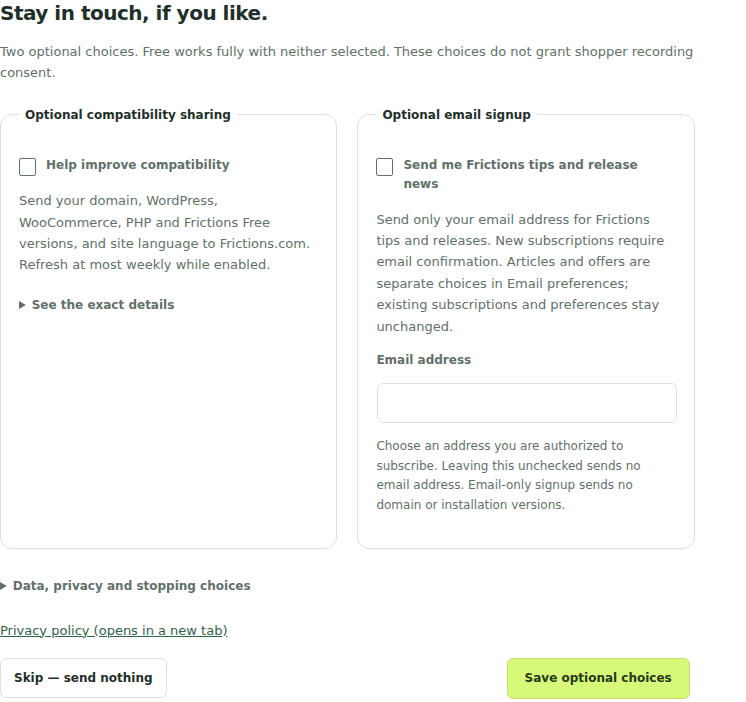
Your optional choices
These choices belong to the store administrator. They do not grant permission to record shoppers.
Review the displayed domain and compatibility information before opting in. This helps us understand the installations whose owners choose to share. It does not upload recordings, order details or customer information.
Enter an email address and explicitly request tips and product news. Confirm through the email and confirmation page before the subscription starts. Email signup does not require installation sharing. Additional email topics remain your choice.
Both choices start unchecked and can be skipped. Revisit the communication controls in Frictions Settings. Stop installation sharing there; use the newsletter preferences or unsubscribe link to control confirmed emails. Read the data details.
Keep the store healthy
New capture pauses when the selected budget is full; retained recordings remain available. The budget measures recording data and related metadata, not every database page, index or backup byte. Monitor actual hosting capacity too.
Shortening retention can expire older recordings sooner. Increasing it applies to new recordings. WordPress scheduled tasks remove expired data; ask your host about reliable scheduled cron on low-traffic stores. Expired recordings cannot be played even if cleanup runs late.
Limit replay and management access to staff who need it. Pro alerts and weekly summaries start disabled and use your WordPress mail setup. Check your account email, mail delivery and scheduling before enabling them.
After restoring a backup, keep capture paused while reviewing deletions, expiry, consent, access and scheduled jobs. Independent hosting backups and downloaded exports need their own retention process.
Keep versions together
Connect your Pro licence for eligible Pro updates. Your purchase account also provides compatible manual downloads. Update Free first, then Pro, and check the supported version pairing. After successful first activation, local Pro tools continue when updates and support expire or the service is unavailable. Normal retention and deletion still apply; Release or Clear locks Pro tools without deleting retained data.
Updating from 0.4.2? That release could pause recording during an upgrade. Versions 0.4.3 and later preserve the current recording and setup choices. Check Recording status after updating; resume only if you intend to record and consent is configured. An update does not turn paused recording on.
Deactivation preserves local data. Uninstalling Free permanently removes its local recordings, settings and registered Pro data. Uninstalling Pro alone removes Pro workflow data while leaving Free recordings available. Neither action cancels billing or erases independent hosting backups or exported files.
The former 0.2.0 architecture used a hosted service. Moving to the local edition does not automatically import, cancel or erase historical remote recordings or subscriptions; handle those separately.
Historical test evidence
The 0.4.5 release was checked on PHP 8.4.26 with WordPress 7.0 and WooCommerce 11.0.0, and PHP 8.5.4 with WordPress 7.1.3 and WooCommerce 11.2.1. Selected database tests used MariaDB 11.8.6 and MySQL 8.4.11.
Checks covered the storage upgrade, retained settings and data, investigation reads, capture, withdrawal and access changes. Free passed the official Plugin Check static and runtime checks with no errors or warnings.
These are selected release checks, not every feature on every version or theme. Test your actual checkout, gateways, consent banner, caching and security rules on staging first. Use the first-recording check to confirm a normal eligible visit.
Neither the demo nor this test list proves payment-provider behavior, inbox delivery, accessibility across every assistive technology or a traffic capacity for your host.